
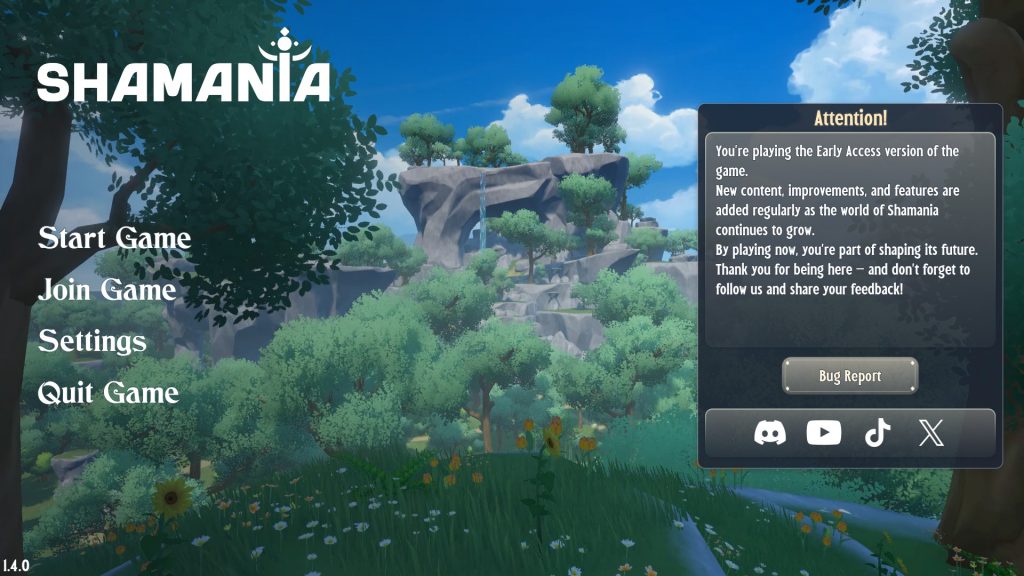
After loading the game you will see four common clickables on the left side of the screen and information on the right. There is also a “Bug Report” button and the links to join or follow Shamania’s Discord, YouTube, TikTok, and X accounts.
After pressing “Start Game” or “Join Game” you will initiate the Character Creation process. Once that is complete you will be prompted to personalize your World Settings.
More information on Character Creation and Customization here.
Your World Saves are connected to the character created for that world. Each new World created will initiate character creation. There is no character selection screen.
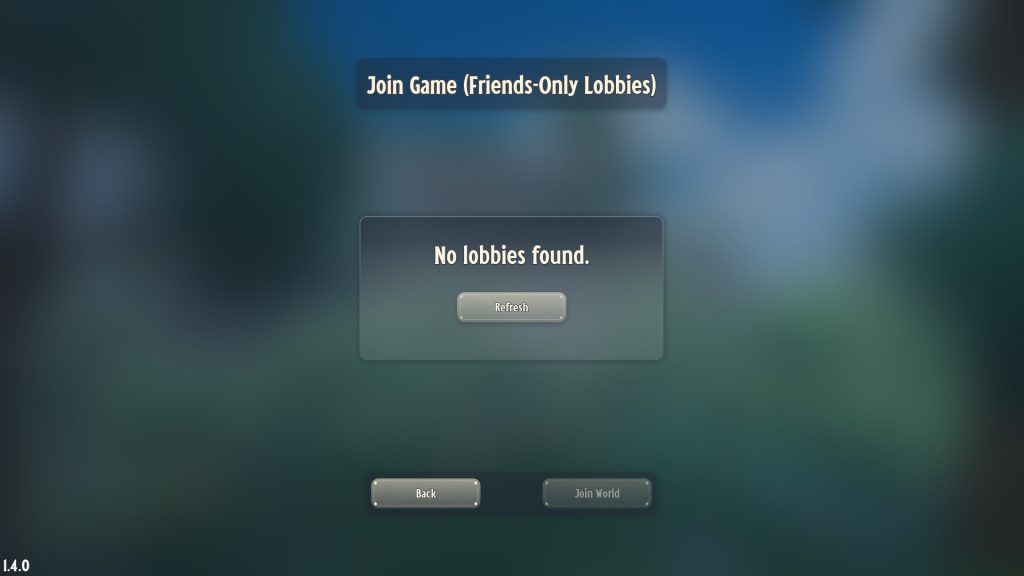
Once you have a character created, you can search for lobbies or join friends by pressing “Join Game”. You can also RMB and Join Game with a Steam Friend directly through your Steam Friends list.
There is no Pause available in Singleplayer or Multiplayer gameplay.
Quitting the game from this screen does not affect any of your saved game. More information on Settings below.
Audio & Video
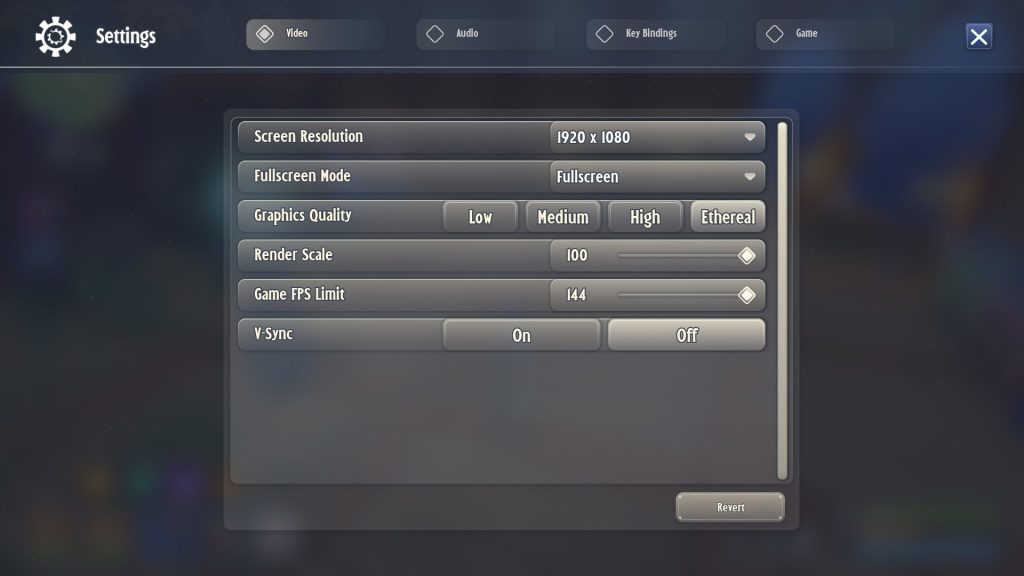
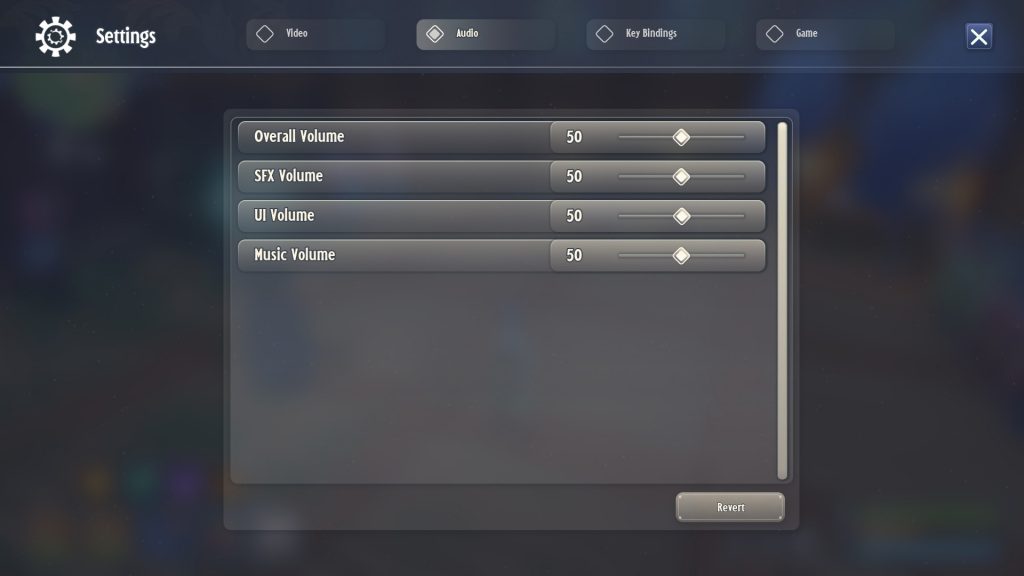
Audio and video settings in Shamania are pretty standard for PC gaming. The best difference is that the Graphics Quality ranges from Low, Medium, High, and Ethereal. The Settings page also displays Key Bindings and options for Game Settings which are listed below. All settings can be accessed while in game also.
World Settings
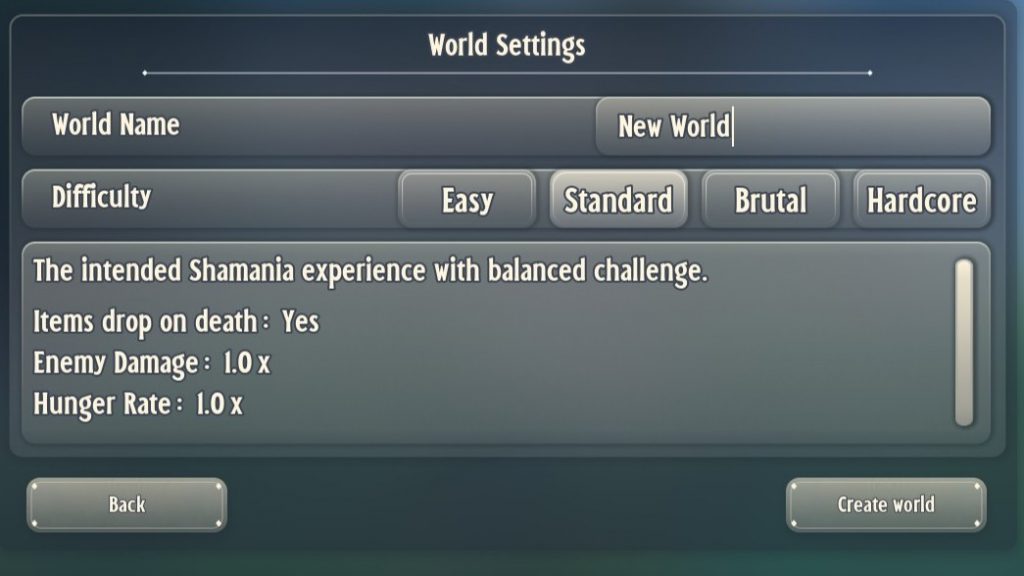
The available World Settings are Easy, Standard, Brutal, and Hardcore. These settings are chosen before the world is created but can also be edited in game by pressing “Esc” under “Edit World”.
| Difficulty | Items Drop on Death | Enemy Damage | Hunger Rate | Permadeath |
| Easy | No | 0.75x | 0.75x | No |
| Standard | Yes | 1.0x | 1.0x | No |
| Brutal | Yes | 1.5x | 1.5x | No |
| Hardcore | Yes | 1.5x | 1.75x | Yes |
Game Settings
| Language | English, Spanish, Russian, Chinese |
| Mouse Sensitivity | 1 – 20 (7-10 is standard) |
| Invert Y-Axis | On or Off (Off is default) |
| Camera Positioning | To The Right or Above (Above is default) |
Key bindings
Key bindings can be changed at any time. In game, press “Esc” and open Settings. There is also a “Revert” option in the bottom left to reset to default key bindings. The only key binding not listed is Glide, which can be performed by pressing “Space Bar” twice while in the air.
There is currently NO CONTROLLER SUPPORT.
| Move Forward | W |
| Move Backward | S |
| Move Left | A |
| Move Right | D |
| Auto Run | Equals (=) |
| Jump | Space Bar |
| Sprint | Left Shift |
| Roll | Left Ctrl |
| Interact | F |
| Toggle Mount Slot | Q |
| Toggle Weapon Slot | E |
| Attack | LMB |
| Aim | RMB |
| Hover Loot | H |
| Use or Eat Item | RMB |
| Split Stack | Left Shift + LMB |
| Quick Transfer | Left Ctrl + LMB |
| Toggle Inventory | Tab |
| Toggle Crafting | K |
| Toggle Building | B |
| Toggle Professions | P |
| Toggle Quests | L |
| Toggle Map | M |
| Toggle Collections | J |
| Emote Wheel | T |
| Show Cursor | Left Alt |
| Hotbar 1 | 1 |
| Hotbar 2 | 2 |
| Hotbar 3 | 3 |
| Hotbar 4 | 4 |
| Hotbar 5 | 5 |
| Spell 1 | Z |
| Spell 2 | X |
| Spell 3 | C |
| Spell 4 | V |